PDFs do not always come in the size you need. A form is A5 but the office wants A4. A file from a US printer is Letter but you print on A4. Some pages are portrait, some are landscape, and a few are a different size from the rest.
The Change PDF Page Size tool on QuickPDFOnline fixes this in your browser. It detects the current size, suggests a better one, and shows a live before and after preview. Your file is never uploaded to any server.
1. What the Change PDF Page Size Tool Does
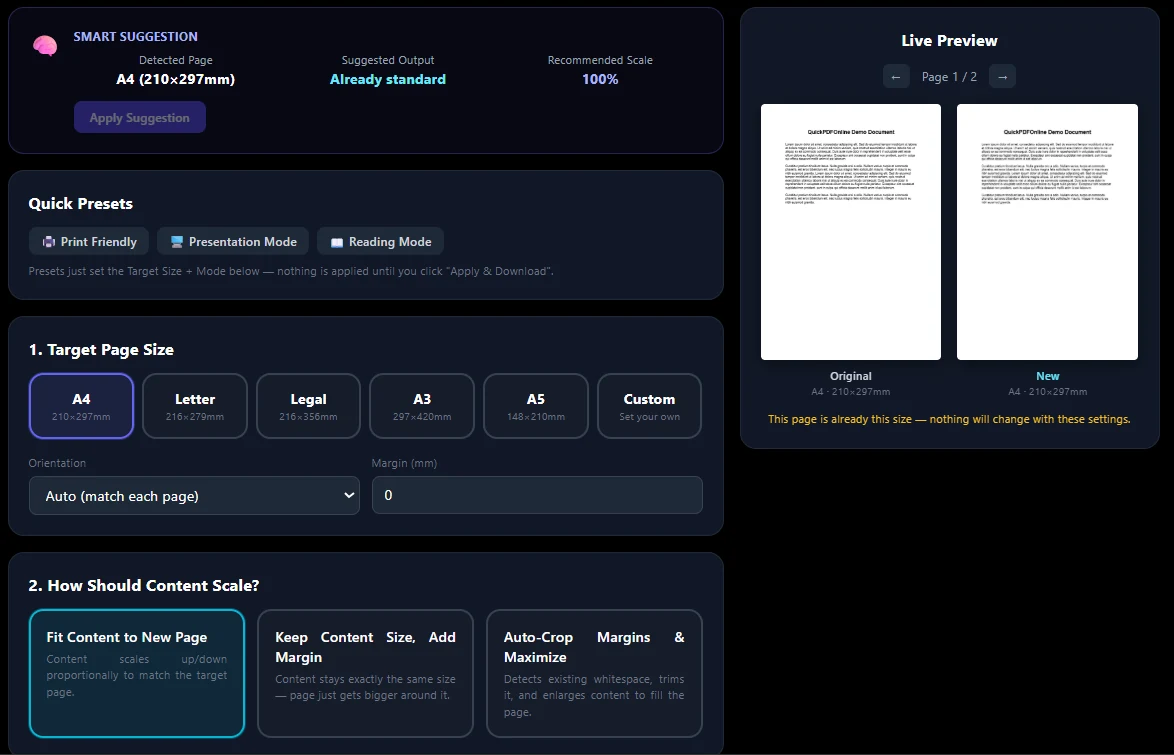
When you add a PDF, the tool reads the real size of your pages and tells you what it found, for example A4 (210×297 mm). If your pages are not a standard size, a Smart Suggestion box shows a better target size and how much the content will be scaled.
You then choose the new size and how the content should fit. A preview shows the Original page and the New page side by side, so you can check it before you download.
The pages are not turned into pictures. Text stays sharp and you can still select it.
2. How to Change PDF Page Size: Step by Step
- Open the tool. Go to the Change PDF Page Size page.
- Add your PDF. Drag your file onto the page, or click Choose PDF File. The current size is detected at once.
- Check the Smart Suggestion. If it suggests a size, click Apply Suggestion. Or skip this and choose your own size.
- Pick a target size. Choose A4, Letter, Legal, A3, A5 or Custom.
- Pick how the content should scale. Choose one of the three modes.
- Set orientation and margin if you need them, then look at the preview. Use the arrows to check other pages.
- Download. Click Apply & Download. The new file is named after your file with the size at the end, for example report-a4.pdf.
3. The Page Sizes You Can Choose
| Size | Millimetres | Common use |
|---|---|---|
| A4 | 210 × 297 | Most documents, forms and printing in India and Europe |
| Letter | 216 × 279 | Standard paper in the USA and Canada |
| Legal | 216 × 356 | Long legal forms and contracts |
| A3 | 297 × 420 | Posters, drawings and large sheets |
| A5 | 148 × 210 | Small booklets and notebooks |
| Custom | Your own | Any size, in mm, inches or points |
4. The Three Scaling Modes
Fit Content to New Page
The whole page is scaled up or down so it fits the new size. It is never stretched, and it is centered. This is the best choice for most jobs, such as Letter to A4.
Keep Content Size, Add Margin
The content keeps its exact size, and the page just becomes bigger around it. Use it when you only need extra white space. The new page must be bigger than the old one, or the content would be cut off.
Auto-Crop Margins & Maximize
The tool finds the empty space around your content, trims it, and enlarges the content to fill the page. It is useful when the text is small and the page has a lot of blank border.
5. Orientation, Margin and Presets
- Orientation. Auto matches each page, so landscape pages stay landscape. You can also force Portrait or Landscape. This setting is off for a Custom size, because you give the exact width and height yourself.
- Margin (mm). Adds white space around the content, from 0 to 50 mm. It is useful for printing. It is switched off in Keep Content Size mode.
- Print Friendly preset. Sets A4 and Fit Content to New Page.
- Presentation Mode preset. Sets a 16:9 slide size (960 × 540 points) and Fit Content to New Page.
- Reading Mode preset. Keeps your page size and turns on Auto-Crop, so the content is enlarged inside the same page.
Presets only change the settings. Nothing is applied until you click Apply & Download.
6. Common Jobs and the Right Settings
| Job | What to do |
|---|---|
| Letter to A4 | Choose A4 and Fit Content to New Page. |
| A5 form to A4 | Click Apply Suggestion, or choose A4 and Fit. |
| Pages of different sizes | Choose one size. Every page is fitted to it. |
| Landscape PDF to A4 | Keep Orientation on Auto. The page stays landscape. |
| Page has a big blank border | Choose Auto-Crop Margins & Maximize. |
| Printer cuts the edges | Choose Fit and add a margin of a few millimetres. |
| Slides from a document | Use the Presentation Mode preset. |
7. Things to Know Before You Start
The whole page is scaled, not only the text
Text, pictures and layout all get bigger or smaller together. The tool cannot enlarge only the text and keep everything else the same.
Small scanned pages can look softer when enlarged
Text in normal PDFs stays sharp at any size. A scanned page is a picture, so making it much bigger can make it look a little soft.
Form fields are flattened, links are not kept
The filled-in content stays visible, but you cannot type in the fields any more. Links and bookmarks are not carried over. Change the size first, and add fields after.
Protected PDFs need to be unlocked first
If the PDF has a password, or print and copy restrictions, the tool cannot open it. Unlock it with the PDF Password tool first. If the file only has restrictions, leave the password box empty.
Maximum page size
A custom page can be up to 14400 points on its longest side, which is about 5 metres.
8. Other Tools That Help
- Only want to cut the margins? Use Crop PDF.
- Page is sideways? Fix it with Rotate PDF.
- Need a smaller file for upload? Use Compress PDF or Resize PDF to reach an exact size in KB or MB.
- Want to save paper? Put several pages on one sheet with Pages Per Sheet.
- Have photos, not a PDF? Turn them into a PDF with Image to PDF, then change the size.
Frequently Asked Questions
Change Your PDF Page Size
No account. No upload. No watermark. Pick a size, check the preview, and download.
Open Change PDF Page Size →