Most PDF tools focus on making files smaller. But sometimes you need the opposite. A portal says your file must be at least 1 MB, and your simple one-page document is only 80 KB. Or a system rejects your file for being "too small" to process correctly. This is a real problem, and it doesn't get talked about much.
This guide shows you how to increase a PDF's file size without breaking the content, using QuickPDFOnline's Increase PDF Size tool — free, in your browser, no upload required.
What Does Increasing a PDF's Size Mean?
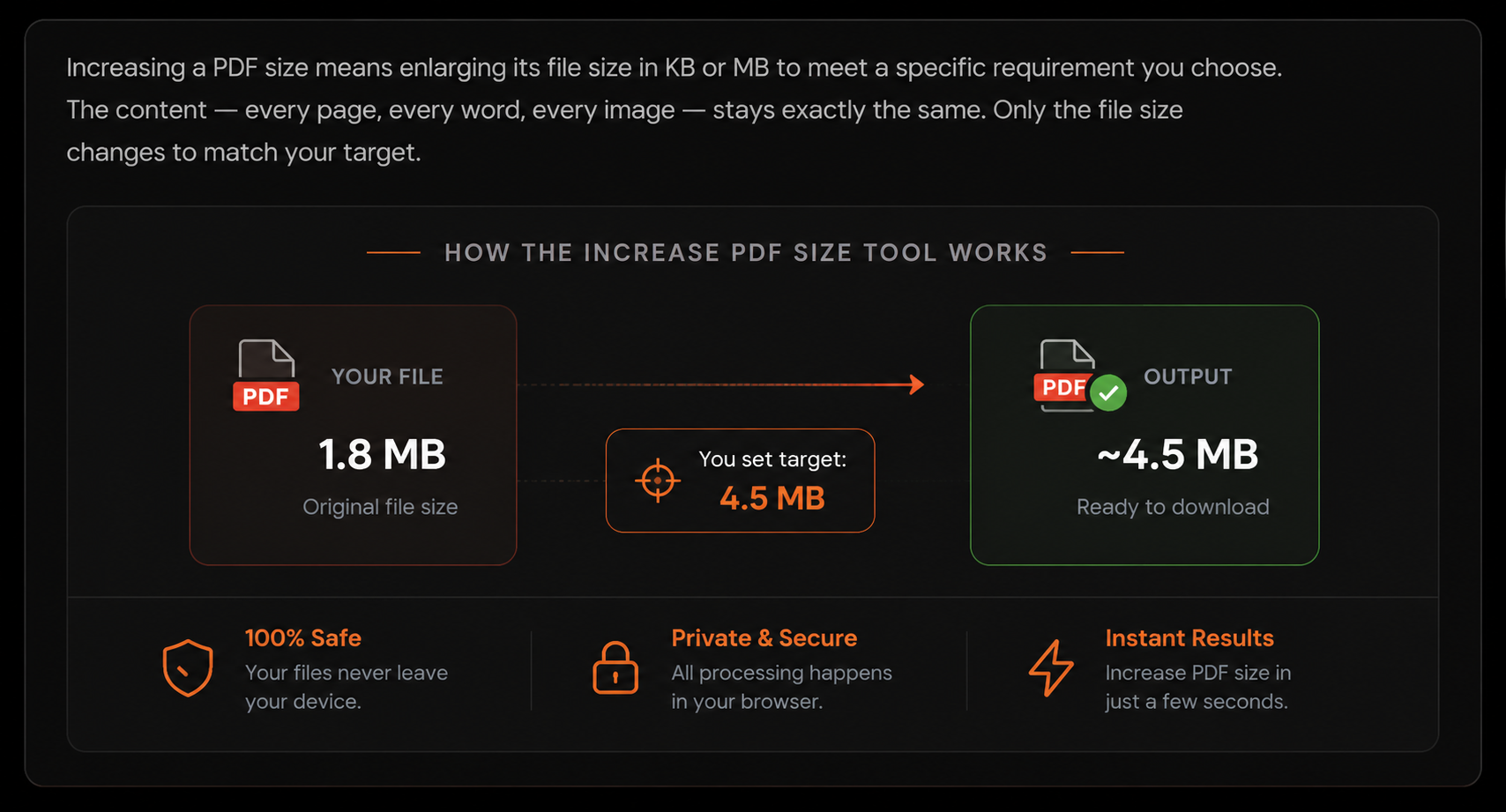
Increasing a PDF's size means making the file larger in terms of file size (KB or MB), without changing what the document looks like or what it says. The page count stays the same. The text stays the same. Only the underlying file size goes up.
This sounds unusual because most of the time people want files smaller, not bigger. But certain systems and portals have a minimum size requirement, and a file that's too small can get rejected just as easily as one that's too large.
Why You Might Need This
This isn't a common everyday task, but when you need it, you really need it. Here's when it comes up:
Minimum Size Requirements
Some government and institutional upload systems are built expecting a certain minimum file size and reject anything smaller, assuming it's incomplete or corrupted.
System and App Testing
Developers testing file upload limits, storage systems, or bandwidth handling often need sample files at specific sizes — including unusually large ones for small content.
Strict Submission Systems
Certain online forms validate file size as a basic check and flag very small files as suspicious or incomplete, even if the content is genuinely fine.
Checking Storage Limits
If you're testing how much storage a system can handle, having a way to quickly create larger test files saves time over manually adding content.
How to Increase PDF Size — Step by Step
Here's how to do it using QuickPDFOnline. It takes less than a minute.
Open the Increase PDF Size tool
Go to quickpdfonline.com/increase-pdf-size. No account needed, and your file never leaves your browser.
Upload your PDF
Click to choose your file or drag it onto the page.
Set your target size
Enter the size you want the final file to reach, in KB or MB. The tool works out how much to add.
Process and download
Click the button to process the file. Once it's done, download the new version — same content, larger file size.
Check the file
Open the new PDF and confirm the pages and content still look exactly right before uploading it anywhere.
How the Tool Actually Adds Size
The tool doesn't change your visible content. Instead, it adds extra data into the file structure that doesn't display on the page — similar to padding. This brings the total file size up to your target without altering how the document looks or reads.
🎥 Watch How to Increase PDF File Size Online Tutorial
This quick tutorial to learn how to increase PDF file size using our free online tool.
What stays the same
Every page, every word, every image you started with. Nothing visible changes when you open the file.
What changes
Only the file size in KB or MB. The extra space is added behind the scenes to hit your target number.
What stays the same
Every page, every word, every image you started with. Nothing visible changes when you open the file.
What changes
Only the file size in KB or MB. The extra space is added behind the scenes to hit your target number.
Benefits of Doing This the Right Way
- Passes minimum size checks: Get past portals that reject files for being too small, without having to add fake content.
- Content stays untouched: Your document looks and reads exactly as it did before.
- Quick and precise: Set an exact target size instead of guessing.
- Private by default: On QuickPDFOnline, this happens entirely in your browser. Your file is never uploaded anywhere.
Common Problems and Simple Fixes
The portal still rejects my file after increasing the size
Double-check the exact minimum size required — some portals state it in KB, others in MB, and it's easy to misread. Also confirm the portal accepts standard PDF files; some have other format restrictions beyond just size.
I'm not sure what target size to use
Check the exact wording of the requirement. If it says "minimum 500 KB," set your target slightly above that, like 550 KB, to give yourself a small buffer.
The file looks different after increasing the size
This shouldn't happen with a proper tool, since the added data isn't visible content. If you notice any visual change, re-check by comparing it side by side with your original file, and try the process again if needed.
Frequently Asked Questions
Conclusion
A file that's too small can be just as much of a problem as one that's too large. QuickPDFOnline's Increase PDF Size tool handles this in a few clicks, keeps your content exactly the same, and processes everything in your browser — free, with no sign-up and no upload.
Increase Your PDF Size Now
Free, in-browser, no upload. Set your target size and go.
Open Increase PDF Size Tool →