It's midnight before your submission deadline. The assignment portal says "Maximum file size: 2MB." Your PDF is 11MB. Or maybe the opposite — the portal requires a minimum file size, and your PDF is only 180KB. You've never needed a compress or PDF size adjustment tool before, you don't know which one to trust, and you're not about to sign up for a free trial at this hour.
Sound familiar? PDF problems have a habit of showing up at the worst possible moments — and most students figure out these tools reactively, under pressure, one crisis at a time. This guide is the shortcut: 11 tools you'll actually need as a student, what each one does, and exactly where to find them for free — no subscriptions, no watermarks, no file uploads to random servers.
All of these are available on QuickPDFOnline. Bookmark it once, use it whenever you need it.
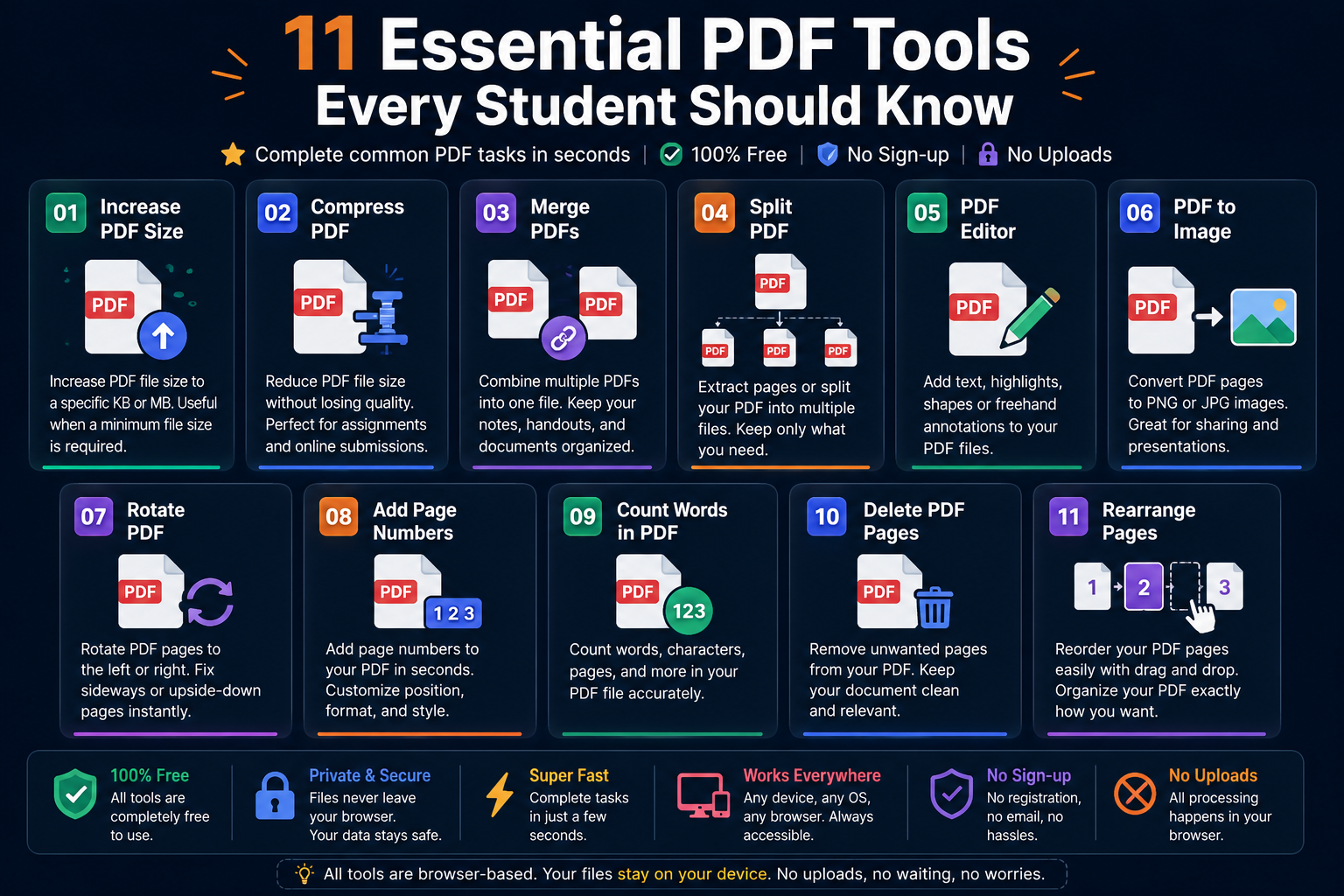
11 essential PDF tools students can use for common PDF tasks.
The 11 Essential PDF Tools
01
Increase PDF Size
Increase PDF file size to a specific KB or MB
Open Tool →
Sometimes a PDF needs to meet a minimum file-size requirement before it can be submitted or uploaded. If your PDF is too small, the Increase PDF Size tool lets you increase its file size to the required KB or MB without changing the document's content.
Simply upload your PDF, enter the target file size, and let the tool process it. This can be useful when an online application, government portal, examination form, or document submission system requires a minimum file size.
Real situation: An online application requires your PDF to be at least 500 KB, but your scanned document is only 180 KB. Increase the PDF size to the required limit and submit it without recreating the document.
Every student hits this at some point. Submission portals at colleges and universities almost always have a file size cap — usually 2MB, 5MB, or 10MB. Your scanned assignment or downloaded study material is often way over that. Compress PDF reduces the file size by optimizing embedded images and removing redundant data, without visually destroying the document.
You get to choose the compression level — light, medium, or heavy. Light compression barely changes the quality but takes off a meaningful chunk of size. Heavy compression makes the file as small as possible, which is fine for text-heavy documents but can degrade scanned pages if they have a lot of detail.
Real situation: Your professor uploaded a 15MB PDF of lecture notes. You need to forward it to your study group through WhatsApp, which caps images at 100MB but slows down dramatically above a few MB. Compress it down to 3MB — everyone's phone is happier.
Group assignments. Lab reports with separate data sheets. A project that has a written report, an appendix, and a bibliography — each saved as a different file. Merge PDF combines all of them into a single, clean document. You drag the files into the order you want, hit merge, and download one PDF.
Submitting one file instead of five shows that you've actually thought about how your work is presented. It also avoids the very real risk that your professor only opens the first attachment and never sees the rest.
Real situation: Your internship application requires a single PDF containing your resume, cover letter, and academic transcripts. Three separate files, five minutes, one merged PDF — ready to attach.
Your syllabus is a 60-page PDF. You only need pages 12–18 for this week's topic. Your professor shared a 200-page course pack and you want just Chapter 4. Split PDF lets you extract any range of pages from a document and save it as a new, smaller file.
It works the other way too — if you want to share only part of a document without giving someone access to the whole thing, split out the relevant section first.
Real situation: Your university's exam schedule is buried on pages 34–36 of a 90-page academic calendar PDF. Extract those three pages, save them separately, and you have a lightweight file you can actually send to your classmates without the whole calendar.
Most students either print notes to highlight them (expensive and wasteful) or read them on screen and highlight nothing (and remember nothing). The PDF Editor is the middle ground. Open any lecture slide or reading, highlight the important parts in yellow, add your own text notes in a different color for things you want to remember, circle formulas, draw arrows between concepts.
You can add text, highlight in multiple colors, draw freehand, insert sticky notes, and add shapes — all without printing a single page. The annotated PDF downloads clean, no watermark, ready to be your study copy.
Real situation: Your professor shares 40 slides before a viva. You open each in the PDF Editor, highlight the key definitions in yellow, write your own explanations in red text boxes next to the original content, and save the annotated version as your revision file.
Some platforms don't accept PDF uploads — only images. Instagram, WhatsApp statuses, college group chats, some online forms, presentation slides. If you have a certificate, an ID, a result slip, or a diagram in PDF format and need it as an image, this is the tool.
PDF to Image converts each page of your PDF into a high-quality PNG or JPG. You choose the page, download the image, and it's ready to upload anywhere that accepts photos.
Real situation: Your scholarship result came as a PDF. The college's online application portal only accepts JPG images for documents. Convert the relevant page to JPG — upload done.
If you've ever scanned a document by hand, you know what happens — half the pages come out sideways, a couple are upside down. Rotate PDF fixes this in seconds. You can rotate individual pages or all pages at once, in 90° increments. The corrected PDF downloads ready to submit.
It also comes up with PDF textbooks that have landscape-orientation charts or diagrams embedded in a portrait document — rotate just those specific pages to read them properly.
Real situation: You scanned your handwritten practicals at a shop and got them back as a PDF. Pages 3, 5, and 7 are sideways. Rotate those three pages, leave the rest as-is, download — submission-ready.
Many universities and departments require page numbers on submitted assignments and dissertations. If you've written your assignment in Word and exported to PDF, you might have them. But if you've merged multiple PDFs from different sources, the page numbering is gone.
Add Page Number inserts page numbers at the header or footer, in whatever position and format you choose. You can also set a starting number — so if your first few pages are a cover page and table of contents that shouldn't be numbered, you can start numbering from page 3 onward.
Real situation: Your dissertation guidelines say "all pages must be numbered in the bottom-right corner, starting from the introduction." You merged your chapters into one PDF. Add page numbers with the right settings and it's done — no need to go back into Word.
Your assignment has a 2000-word limit. You exported it to PDF and now you need to confirm the final word count — but Word's count and PDF word counts can differ slightly after formatting. Or you need to check the word count of a PDF you received, not one you wrote.
Count Words in PDF gives you an accurate word count directly from the PDF — no copy-pasting into a Word counter, no manual counting. Upload, get the count, done.
Real situation: Your professor shared marking rubrics as a PDF and you're analyzing how many words are in the "distinction criteria" section compared to the "pass criteria" section — relevant for understanding what the examiner values. Upload the PDF, get the count per section.
You've got a 30-page PDF but pages 8, 15, and 22 are blank — artifacts from the scanning process. Or you downloaded a report and the first three pages are a licensing agreement you don't want to include when sharing it. Delete PDF Pages lets you select specific pages and remove them from the document without touching the rest.
It's also useful when your assignment accidentally includes a draft version of a page that you meant to replace — delete it, merge in the corrected version, done.
Real situation: You scanned 20 pages of lab work but the scanner picked up blank pages between each sheet — your PDF is now 40 pages. Delete all the blank pages and you're back to the clean 20-page document you actually want to submit.
You scanned 15 pages and realized page 6 should actually be page 3. Or you've merged multiple documents and the order isn't quite right. Rearrange Pages shows you thumbnail previews of every page and lets you drag them into whatever order you want — no re-scanning, no re-merging, no starting over.
This is also how you move a cover page that got added last to the front of the document — drag it to position 1 and download the corrected file.
Real situation: You scanned your practicals in a hurry and they came out in the wrong order — experiment 3 is at the start, experiment 1 is at the end. Rearrange the pages into the correct order and submit without having to visit the scanning shop again.
A Few Tips That'll Save You Time
Now that you know the tools, here's how to use them smarter:
Tip 01
Always compress after merging, not before. Merging compressed files can sometimes increase the size. Merge first, then compress the combined PDF once.
Tip 02
Keep your original files. Never overwrite. Save processed files with a new name like assignment_final_compressed.pdf.
Tip 03
For annotating study notes, use color-coding consistently: yellow for definitions, green for examples, red for things you don't understand yet.
Tip 04
Bookmark quickpdfonline.com right now. You will need it at midnight before a deadline. Future you will be grateful.
Privacy reminder: All tools on QuickPDFOnline process your files directly in your browser — nothing is uploaded to any server. This matters when you're working with exam papers, certificates, personal documents, or anything you'd rather not hand to a random third-party service.
Frequently Asked Questions
Yes — completely free, and not "free with a paywall hidden midway through." No sign-up, no trial period, no credit card required. All 11 tools listed in this article are available on QuickPDFOnline at no cost.
Yes. QuickPDFOnline works in any modern mobile browser — Chrome on Android, Safari on iPhone. The tools are usable on mobile, though for detailed annotation work like highlighting specific text, a tablet or desktop gives you more precision. For tasks like compress, merge, split, rotate, and page deletion, mobile works perfectly fine.
It depends on what's in the PDF. Text-only PDFs compress dramatically with almost no visible quality change — you can often cut them by 60–80% with light compression. PDFs with lots of images (like scanned handwritten notes or photo-heavy lab reports) will show more degradation at higher compression levels. The rule of thumb: use light compression first, check if the file size is acceptable, and only go heavier if you really need to.
Use the Rearrange Pages tool — upload the merged PDF and drag the pages into the correct order. You don't need to re-merge from scratch. Alternatively, for future merges, always drag-sort your files in the merge tool's interface before hitting the merge button — the thumbnails show you exactly what order you'll get.
Yes — because your files never leave your device. All processing happens locally in your browser using JavaScript. No file is transmitted to any server, which means there's no third party storing your admit card, marksheet, or certificate. You can verify this yourself: open the browser's developer tools, go to the Network tab, and watch — you'll see no file upload requests when you use any tool.
Conclusion
These 11 tools cover pretty much every PDF situation you'll run into as a student — from the midnight file-size panic to the dissertation that needs page numbers to the scanned practicals that came out sideways. None of them cost anything, none of them need your email address, and none of them touch a server. QuickPDFOnline has all of them in one place — open the tab, do what you need, close it. That's the whole workflow.
All 11 Tools. Free. No Sign-Up.
Bookmark it before your next deadline — not after.