Many forms, job portals and college sites only accept a PDF. But your Aadhaar card, mark sheet or signature is usually just a photo on your phone. A few photos can also be easier to share as one single file than as many separate pictures.
The Image to PDF tool on QuickPDFOnline turns one or many photos into one PDF. You can change the order, rotate a photo, choose the page size, and pick the file size. Your photos are never uploaded to any server.
1. What the Image to PDF Tool Does
You add your photos, and each photo becomes one page of the PDF. Before you download, you can drag the photos into the right order, rotate any photo that is sideways, and choose how the pages look.
Everything happens in your browser. The PDF is built on your own device, so there is no upload and no waiting for a server.
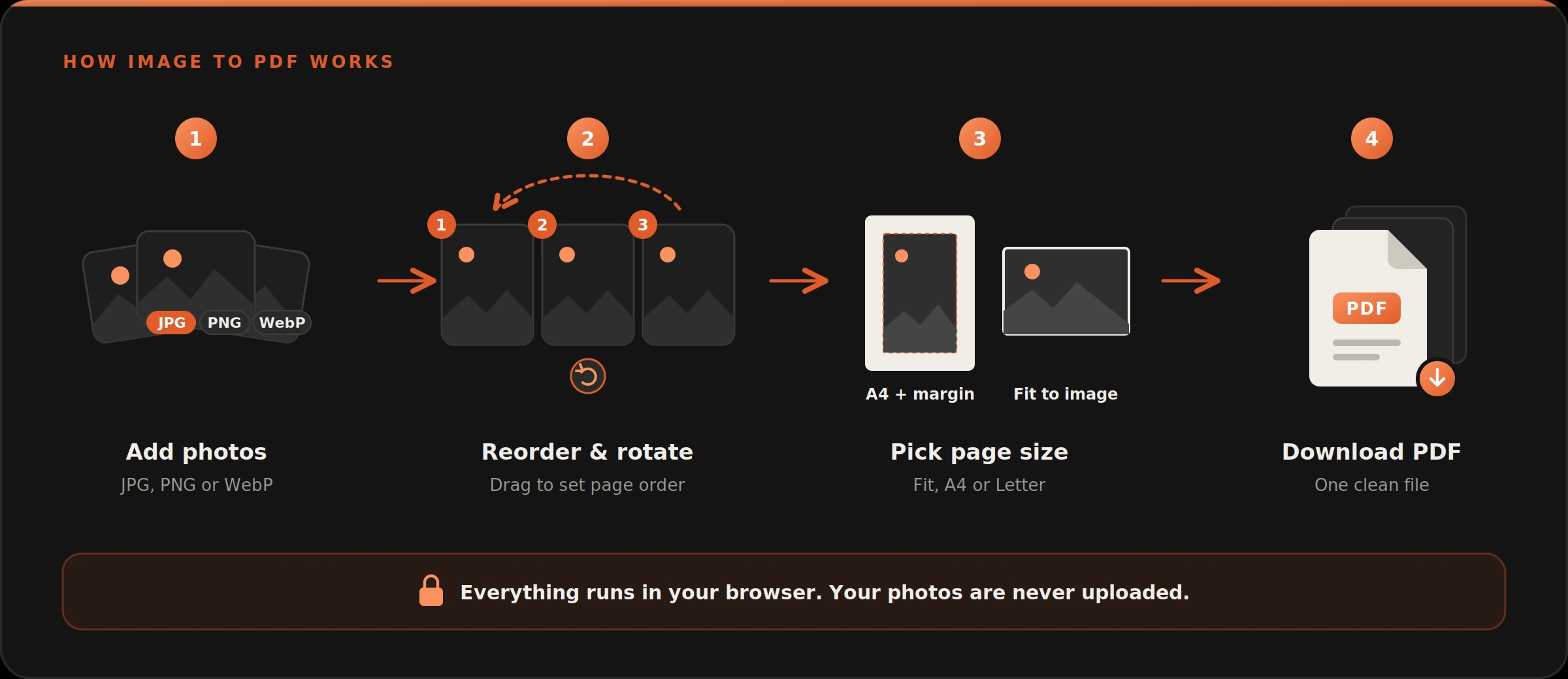
2. How to Convert Images to PDF: Step by Step
- Open the tool. Go to the Image to PDF page.
- Add your photos. Drag them onto the page, or click Choose Images. You can pick many at once.
- Put them in order. Drag the thumbnails, or use the arrow buttons under each one. The number on each thumbnail is its page number.
- Rotate if needed. Use the rotate buttons under a thumbnail to turn a sideways photo.
- Choose the page settings. Pick Fit to Image, A4 or US Letter, and set orientation, margin and quality.
- Download. Click Convert to PDF & Download. The file is saved as images-to-pdf.pdf.
3. Order and Rotation
- Drag to reorder. Hold a thumbnail and drop it where you want it. The page numbers update at once.
- Arrow buttons. Use the left and right arrows to move a photo one place at a time.
- Rotate buttons. Turn a photo left or right in steps of 90 degrees. The thumbnail turns too, so you can see the result.
- Phone photos are corrected. Photos taken in portrait mode are turned the right way up automatically.
4. Page Size, Orientation and Margin
| Page size | What you get | Good for |
|---|---|---|
| Fit to Image | Each page is exactly the size of its photo. No white border. | Sharing on phone, keeping the photo as it is |
| A4 | Each photo is centered on an A4 page, inside a margin. | Printing, forms and portals |
| US Letter | Same as A4, on a Letter page. | US and Canada forms |
The next two settings work only for A4 and Letter:
- Orientation. Auto turns the page to landscape when the photo is wide, so it does not shrink. You can also force Portrait or Landscape.
- Margin. The white space around the photo, in points. The default is 20, and you can use any number from 0 to 100. There are 72 points in one inch.
5. Quality and File Size
| Quality | What it does | Use it for |
|---|---|---|
| Original | No compression. JPG and PNG photos go into the PDF as they are. | Best look, biggest file |
| High | Keeps photos sharp and makes the file a little smaller. | Printing |
| Medium | Smaller file, still clear. | Email and sharing |
| Small | Smallest file. | Portals with an upload limit |
Phone photos are big, so a PDF made with Original quality can be large. If a portal rejects the file, choose Small and convert again. If it is still too big, remove extra photos, or use Compress PDF or Resize PDF to reach an exact size in KB or MB.
6. Common Jobs and the Right Settings
| Job | What to do |
|---|---|
| Upload to a portal with a size limit | Choose A4 and Small quality. |
| Print the PDF | Choose A4, High quality, and keep the default margin. |
| Keep the best quality | Choose Fit to Image and Original quality. |
| A photo is sideways | Use the rotate buttons on its thumbnail. |
| Pages are in the wrong order | Drag the thumbnails into place. |
| Mix of tall and wide photos | Choose A4 and keep Orientation on Auto. |
| Several photos of one document | Add them all, order them, and download one PDF. |
7. Things to Know Before You Start
Some photos are saved again as JPEG
If you rotate a photo, use a WebP, GIF or BMP file, or choose High, Medium or Small quality, the photo is saved again as a JPEG inside your browser. A PNG with a transparent background gets a white background in this case. With Original quality, a PNG keeps its transparency.
Very big photos can be a problem
A huge photo can use a lot of memory. If the tool says an image is too large for your browser, choose Medium or Small quality and try again.
Some files cannot be read
If a file cannot be opened, for example some HEIC photos, the tool shows its name. Save that photo as a JPG and add it again.
The text in the photo is not searchable
The PDF is made of pictures, so you cannot select or search the words in it. To make them searchable, run the PDF through OCR PDF.
8. Other Tools That Help
- Photos of papers look dull or yellow? After making the PDF, clean it with Optimize Scanned PDF.
- Need to add your signature? Use Sign PDF.
- Want a different page size later? Use Change PDF Page Size.
- Need to join this PDF with other PDFs? Use Merge PDF.
- Want the photos back from a PDF? Use PDF to Image.
Frequently Asked Questions
Turn Your Photos into a PDF
No account. No upload. No watermark. Add your photos, set the order, and download.
Open Image to PDF →