A scanned PDF looks like a document, but it is really a set of pictures. There is no real text inside, so you cannot search it, select a line, or copy a paragraph. Old records, printed forms and photographed pages are usually like this.
The OCR PDF tool on QuickPDFOnline reads the text from those pictures. OCR means optical character recognition. You get a searchable PDF, a plain .txt file, or both. It works in Hindi, Gujarati, English and more. Your file is never uploaded to any server.
1. What the OCR PDF Tool Does
The tool opens each page of your PDF, cleans up the picture a little so the letters stand out, and then reads the text from it. It shows a progress bar with the page it is working on and a time estimate, and you can cancel at any time.
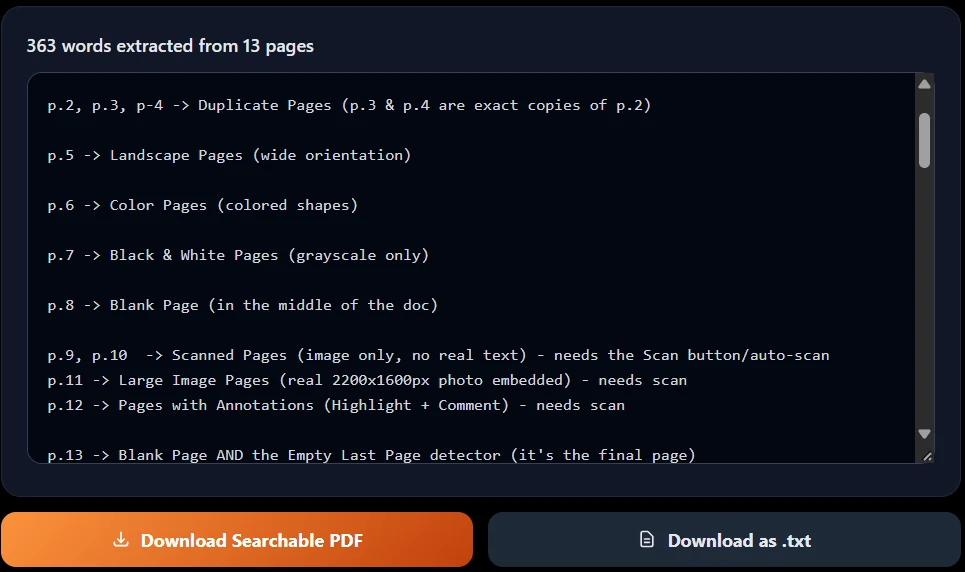
When it finishes, you see the text on screen with the number of words found. Then you choose what to download: a searchable PDF, a .txt file, or both.
2. How to OCR a PDF: Step by Step
- Open the tool. Go to the OCR PDF page.
- Add your scanned PDF. Drag the file onto the page, or click Choose PDF File.
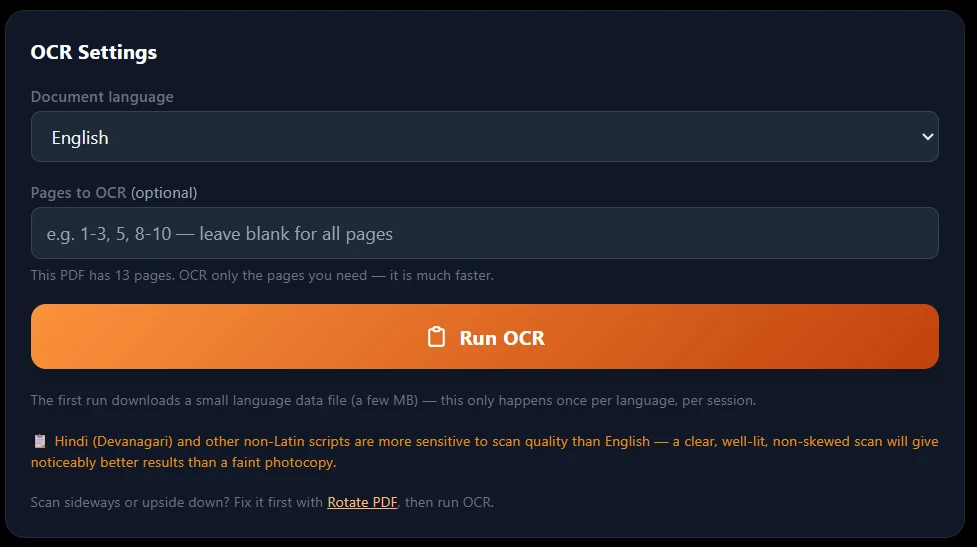
- Choose the document language. This is the most important setting. See the next section for help.
- Choose the pages (optional). Type a range like 1-3, 5, 8-10. Leave it empty to read every page. Reading only the pages you need is much faster.
- Click Run OCR. On the first run, a small language file is downloaded. Then each page is read one by one.
- Check the text. The extracted text is shown in a box, with a line like "--- Page 2 ---" before each page.
- Download. Click Download Searchable PDF, or Download as .txt.
3. Choosing the Right Language
The tool does not guess the language. You choose it, and a wrong choice gives bad text. Use this table:
| Your document | Choose |
|---|---|
| English only | English |
| Hindi only | Hindi (हिन्दी) |
| Gujarati only | Gujarati (ગુજરાતી) |
| Marathi only | Marathi (मराठी) |
| Hindi and English together | English + Hindi |
| Gujarati and English together | English + Gujarati |
| Marathi and English together | English + Marathi |
| Spanish, French or German | Spanish, French or German |
4. Searchable PDF or .txt: What You Get
Searchable PDF
Your original pages stay exactly as they are, with the same quality. An invisible text layer is added behind each page you read. You can search with Ctrl+F and copy text, and the page still looks like the scan. The file name ends with -searchable.pdf.
Plain text (.txt)
All the text in one simple file, with a "--- Page N ---" line before each page. It is saved as UTF-8, so Hindi and Gujarati letters open correctly. The file name ends with -ocr.txt.
If you skip some pages with the page range, those pages are copied into the searchable PDF unchanged.
5. How to Get Better Results
- Start with a clear scan. A sharp, well-lit and straight scan gives the best text. A faint photocopy gives more mistakes.
- Fix sideways or upside-down pages first. Use Rotate PDF, then run the OCR.
- Clean the scan first. If the paper is yellow or the ink is faded, use Optimize Scanned PDF and then run the OCR on the cleaned file.
- Pick the right language. For pages with two languages, choose a combined option like English + Hindi.
- Read only the pages you need. It saves time on big files.
- Read the text before you use it. OCR can still make small mistakes, so check names, numbers and dates.
6. Things to Know Before You Start
OCR is not perfect
Printed text in a clear scan usually comes out well. Blurry photos, skewed pages and handwriting give weaker results.
Hindi and other non-Latin scripts need a good scan
The letter strokes are finer, so they are easier to lose on a faint copy. A clear original scan makes a bigger difference for Hindi, Gujarati and Marathi than for English.
The highlight may not sit exactly on the word
The invisible text is placed line by line, not at each word's exact spot. Search and copy work well, but a highlight can appear slightly away from the word.
The first run downloads a language file
It is a few MB and is downloaded once per language in a session. You need an internet connection for that step.
Protected PDFs need to be unlocked first
If the PDF has a password, the tool cannot open it. Remove the password with the PDF Password tool first, if you know it.
7. Other Tools That Help
- PDF already has real text? If you can select the text, you do not need OCR. Use PDF to Text instead.
- Scan looks yellow or faded? Clean it with Optimize Scanned PDF.
- Need only a few pages? Use Split PDF first, then run the OCR.
- Want to pull out the pictures? Use Extract Images.
- File too big for upload? Use Compress PDF.
Frequently Asked Questions
Make Your Scanned PDF Searchable
No account. No upload. No watermark. Choose the language, run the OCR, and download.
Open OCR PDF →