There are hundreds of free PDF websites. Most of them ask you to upload your file, wait for a server to work on it, and then download the result. Many also add a watermark, ask you to sign up, or show a "Go Premium" screen at the last step.
QuickPDFOnline works in a simpler way. Everything happens inside your browser. Your file stays on your device, and you get a clean result. In this post, we explain the main reasons why people use it.
1. Your Files Stay on Your Device
This is the biggest reason. When you use QuickPDFOnline, your PDF is opened in your browser's memory and processed on your own device. It is not sent to any server. When you close the tab, the file is cleared from memory.
This matters when your PDF has private information, such as a salary slip, an Aadhaar copy, a bank statement, a contract, or a mark sheet. With most online tools, a copy of that file travels to someone else's server. Here, it does not.
2. Free, No Sign-Up, No Watermark
Every tool is free. There are no paid plans, no trial period, and no account to create. Many "free" sites stamp their logo on your file, which makes it useless for work, school, or an official form. QuickPDFOnline adds no watermark or branding. What you see in the preview is what you download.
3. Nothing to Install
You do not need Adobe Acrobat, an extension, or an app. The tools run in modern browsers like Chrome, Firefox, Safari, and Edge, and also in mobile browsers like Chrome on Android and Safari on iPhone. So you can fix a PDF on your phone when you are away from your laptop.
4. 6 Tools That Go Beyond the Basics
Merging and rotating are easy to find anywhere. These six tools do more than the usual, and each one has a few features that save real time. Here is what each one actually does.
PDF Editor
Edit a PDF in your browser, like a light version of a desktop editor. It is the biggest tool on the site, so here are the parts people use most.
- Text with real font choice: pick from standard fonts, Google fonts, handwriting-style fonts, and Hindi (Devanagari) fonts. Drag the text anywhere after you place it.
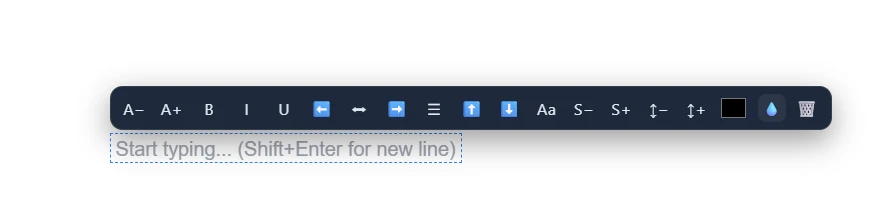
- Mini toolbar above every text box: make text bigger or smaller (A− / A+), then use bold, italic, underline, and align left, center, right, or justify. You can also change letter spacing, line spacing, color, and opacity right there.
- Font Finder: click any text on the page to see its font name, size, and whether it is bold or italic. Then you can match your new text to the document. Color Finder does the same for colors and shows the HEX and RGB values.
- Mark up and sign: highlight, draw freehand, add shapes, lines, and arrows, draw your signature, and leave sticky notes. You can also use ready stamps, your own image stamp, and checkboxes or radio buttons.
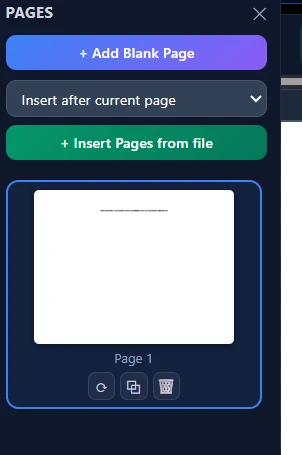
- Pages panel: add a blank page at the start, at the end, after the current page, or before or after a page number. You can also insert pages from another file, and rotate, duplicate, or delete any page.
- Small helpers that save time: alignment guides that snap text into place, undo and redo, find text, zoom from 40% to 300%, lock a finished element, and print a page range.
Good to know: The editor adds content on top of the page and cannot rewrite the original text. It can hide existing text with a box, but that is a cover-up. To remove private details for good, use the Redact tool below. For a step-by-step walkthrough of all 26 features, read the complete PDF Editor guide.
Watermark PDF
Add your name, a logo, or words like CONFIDENTIAL and DRAFT.
- Use text (6 font choices) or upload an image such as a logo or signature
- Drag the watermark anywhere on a live preview, and the download matches it
- Turn on Mosaic to tile the watermark across the whole page, with an adjustable gap
- Set opacity and rotation, and apply to all pages, the first page, odd pages, even pages, or a custom range like 1-3, 5, 8-10
Good to know: A password-protected PDF must be unlocked first. Use the Password tool, add your watermark, and then lock the file again if you want.
Split PDF
Take out only the pages you need, in the way that suits your file.
- 7 split modes: range, select pages, every N pages, by file size, by bookmarks, at blank pages, and every page
- Click page thumbnails to select them, use Shift+click for a range, or pick odd pages, even pages, or invert
- Or choose the pages to remove and keep the rest
- Set a maximum size per file to stay under email limits, and download many files as one ZIP with your own file name
Good to know: Splitting at blank pages is handy for a batch of scanned papers that are stuck together in one PDF.
Redact PDF
Black out private details before you share a document.
- Auto Detect finds Aadhaar numbers (12 digit), PAN, phone numbers, emails, and bank account numbers (9-18 digits) on every page
- Or draw boxes yourself, choose the box color, and use Copy Box to All Pages for a repeated header or footer
- Each page is saved as a flat image at 150 DPI, so the hidden text cannot be recovered
- Choose output quality from Best (PNG) to Low, to balance clarity and file size
Good to know: Auto Detect works on text-based PDFs only, so draw boxes by hand on scans. Always review the boxes before you download. Because pages become images, text in the final file cannot be selected or searched.
PDF Password
Lock a PDF, or remove a password you already know.
- Protect a file with an open password, so it cannot be opened without it
- Or use an owner password only: the file opens for anyone, but printing, copying, and editing stay locked
- Choose exactly what people may do: print, copy text, or edit
- Unlock a file with its password, or lift print/copy/edit limits by leaving the password blank when the file has no open password
Good to know: No tool can open a PDF that has a real open password without that password. This is how PDF security works, not a limit of this site.
PDF Organizer
Five or six small jobs on one screen.
- Drop in many PDFs and images together. Each image becomes its own page
- Drag thumbnails to reorder, rotate sideways pages, and delete bad pages, with zoom to check details
- Open any page to place a logo, stamp, or photo, then drag to move, resize, or rotate it
- Add page numbers: pick one of six positions, a format like 1 / N or Page 1 of N, and the starting number
Good to know: Page numbers are added to every page of the final file. Turn the option off if you do not want them.
5. Use Them Together: A Safe Sharing Workflow
Because nothing is uploaded, you can pass one file through several tools without worry. For example, to send a sensitive document to a college, a bank, or a client:
- Organizer: combine your scans, fix the page order, and add page numbers.
- Split: keep only the pages the other side needs.
- Redact: black out details they do not need to see, such as an account number.
- Watermark: add "For Admission Only" or your name so the file is not misused.
- Password: lock the final file, and share the password separately.
6. QuickPDFOnline vs Typical PDF Sites
Here is a simple picture of how your file is handled on a typical free PDF site, and how it is handled here.
Frequently Asked Questions
Try QuickPDFOnline Now
No account. No upload. No watermark. Open a tool, use it, and download your file.
Explore All Tools →