Many forms, offices and colleges ask for a "scanned copy" of a document. But often you only have a clean digital PDF on your computer, made in Word or exported from a website. The usual fix is to print it, scan it on a scanner or phone app, and upload it again. That takes time, paper and a working scanner.
The PDF to Scan tool on QuickPDFOnline does this in one step. You pick a PDF or a few photos, choose a scan style, and download a new PDF that looks like it came off a scanner. Everything runs in your browser, so your file is never uploaded.
1. What the PDF to Scan Tool Does
A real scan is a photo of paper. It is slightly soft, a little tilted, and the paper is not perfectly white. A digital PDF has none of that, so it looks "too clean".
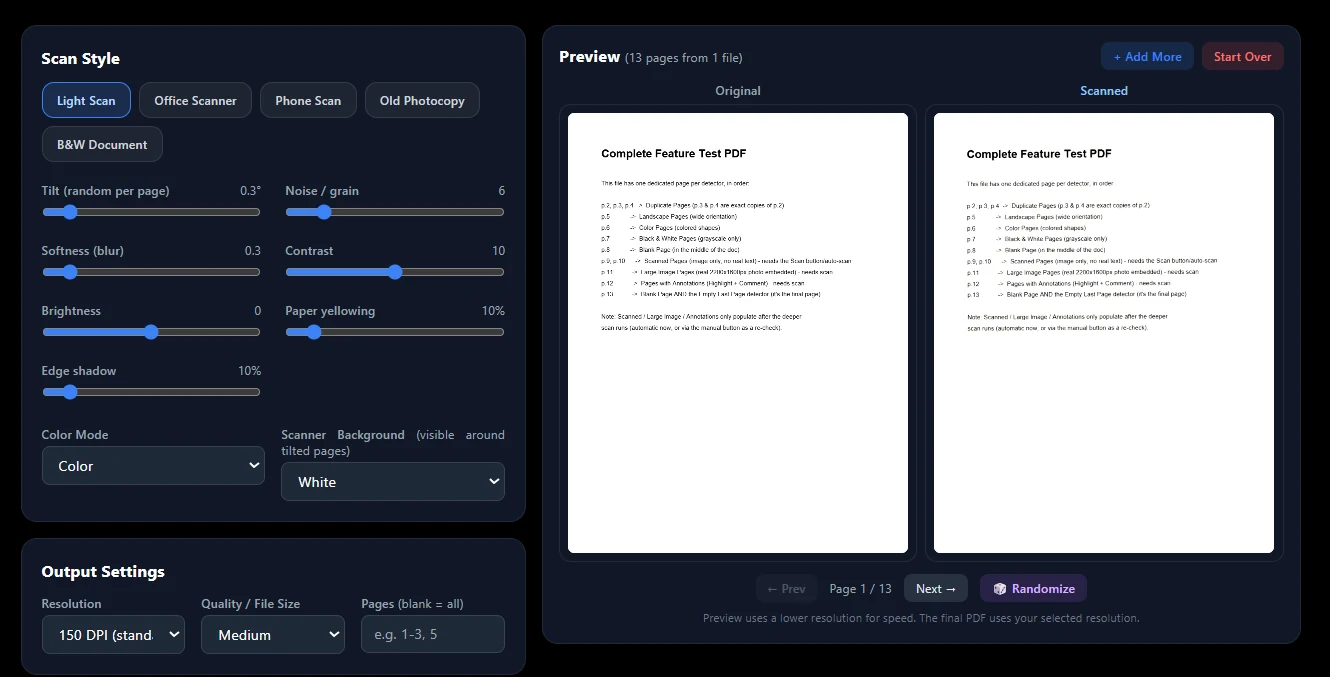
The tool redraws each page as an image and adds those small imperfections: a slight tilt, fine grain, a bit of softness, scanner-style contrast, a warm paper tone, and a soft shadow near the edges. It then saves all pages as a new PDF.
You can upload a PDF, or one or more photos (JPG, PNG or WebP). If you add photos, each photo becomes one page.
2. How to Make a PDF Look Scanned: Step by Step
- Open the tool. Go to the PDF to Scan page.
- Add your file. Drag your PDF or photos onto the page, or click Choose File. You can use Add More to add other files later.
- Pick a preset. Start with Office Scanner for a normal scan look, or choose another preset from the list below.
- Check the preview. The Original page and the Scanned page sit side by side. Use Prev and Next to check other pages.
- Fine-tune if needed. Move any slider and the preview updates at once. Press Randomize to get a different tilt and grain.
- Choose output settings. Pick the resolution, the quality, and which pages to include.
- Download. Click Make Scanned PDF & Download. A progress bar shows each page, and you can cancel at any time.
3. The 5 Scan Presets
Presets set all the sliders for you. Pick one, then change anything you like.
| Preset | Look | Good for |
|---|---|---|
| Light Scan | Color, very small tilt and grain | A clean copy that only looks a little scanned |
| Office Scanner | Grayscale, small tilt, light grain | Normal office and form submissions |
| Phone Scan | Color, more tilt, gray background and shadow | A page that looks photographed on a table |
| Old Photocopy | Grayscale, strong contrast and grain | A worn, photocopied look |
| B&W Document | Pure black and white | Text documents and smaller files |
4. Settings You Can Change
Tilt, grain and softness
Tilt turns each page by a small random angle (up to 3 degrees). Noise adds grain. Softness blurs the page slightly, like a real scanner lens.
Contrast and brightness
Raise contrast to make text darker and paper lighter. Use brightness if the page looks too dark or too washed out.
Paper yellowing and edge shadow
Yellowing gives the paper a warm tone, like an older sheet. Edge shadow darkens the borders a little, as a scanner lid often does.
Color mode and scanner background
Choose Color, Grayscale or Black & White. The scanner background (white, light gray or dark gray) shows in the corners when a page is tilted.
Resolution, quality and pages
Resolution can be 100, 150, 200 or 300 DPI. Quality can be High, Medium or Small. In the Pages box you can type a range like 1-3, 5 to scan only some pages.
5. How to Keep the File Small
A scanned PDF is made of images, so it is usually bigger than the original. If you need a small file for an upload limit, try these:
- Choose 100 or 150 DPI instead of 300 DPI.
- Set Quality to Small.
- Use Grayscale or Black & White instead of Color.
- Lower the Noise slider. Grain is hard to compress, so less grain means a smaller file.
- Scan only the pages you need, using the Pages box.
If the file is still too big, run it through the Compress PDF tool or the Resize PDF tool to reach an exact size.
6. Things to Know Before You Start
The output is image-based
Every page becomes a picture, just like a real scan. You cannot select, copy or search the text in the new PDF.
Need searchable text? Run the new file through the OCR PDF tool.
Page size stays the same
PDF pages keep their original size. Photos are placed on pages with an A4 width.
Locked PDFs need to be unlocked first
If a PDF has an open password, the tool cannot read it. Remove the password with the PDF Password tool first, if you know it.
Use a lower resolution on phones
High resolutions use a lot of memory. On a phone, 150 DPI works best. If a very large file fails, try a lower resolution.
7. Use It Honestly
This tool changes how a page looks. It does not change what the page says. Use it for your own documents, or documents you have the right to process, for example to match the format a form asks for.
8. Print and Scan vs PDF to Scan
Frequently Asked Questions
Make Your PDF Look Scanned
No account. No upload. No watermark. Pick a preset, check the preview, and download.
Open PDF to Scan →