Scanned documents are rarely perfect. The paper looks yellow, the ink looks faded, thin letters are hard to read, and sometimes the whole page is dark. The file can also be very large, which is a problem when a portal only accepts a small upload.
The Optimize Scanned PDF tool on QuickPDFOnline fixes these problems in your browser. You choose what to clean, check the preview, and download a cleaner and often smaller PDF. Your file is never uploaded to any server.
1. What the Optimize Scanned PDF Tool Does
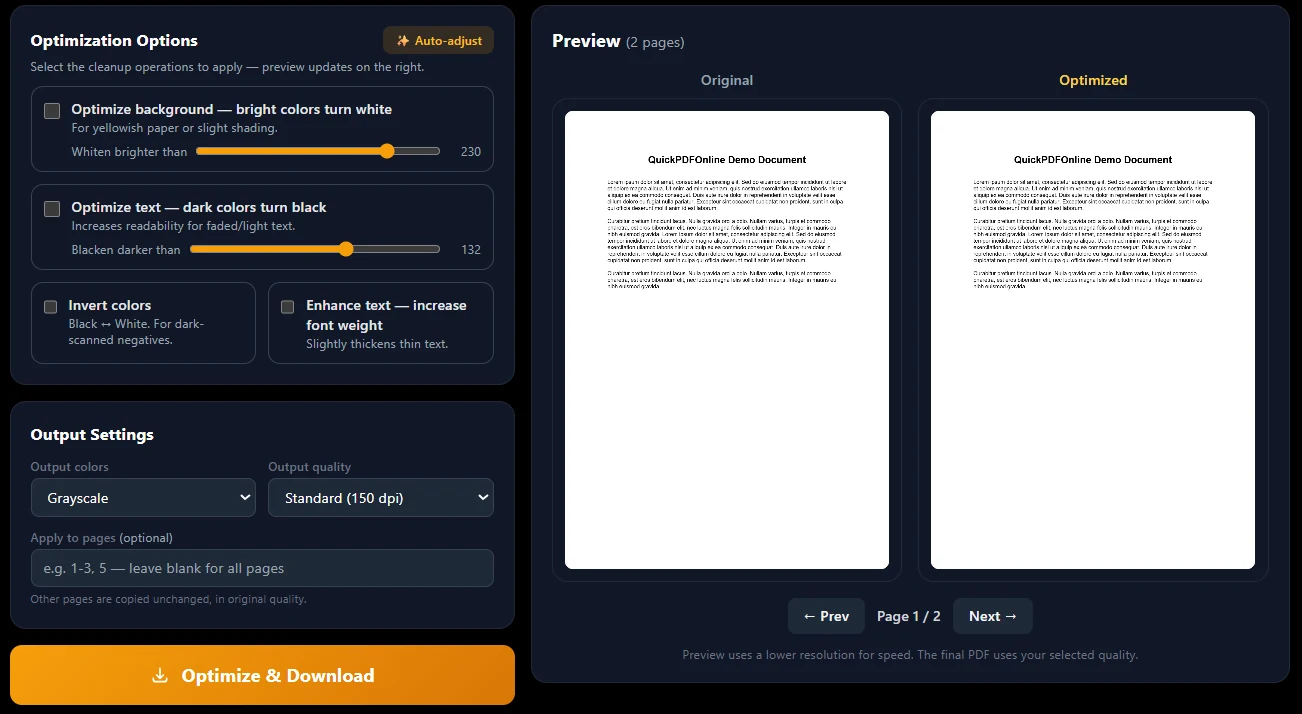
The tool opens each page of your PDF as a picture, fixes the colors on that picture, and saves all pages as a new PDF. You can turn on any mix of these fixes:
- Turn yellow or grey paper white.
- Make faded text darker.
- Make thin text a little thicker.
- Invert a dark, negative-looking scan.
- Save the result in color, grayscale, or pure black and white.
A live preview shows the original page and the cleaned page side by side, so you can see the result before you download.
2. How to Clean Up a Scanned PDF: Step by Step
- Open the tool. Go to the Optimize Scanned PDF page.
- Add your PDF. Drag your scanned PDF onto the page, or click Choose PDF File.
- Try Auto-adjust first. Click the Auto-adjust button. The tool checks the paper tone and ink darkness of the page and sets the sliders for you.
- Fine-tune if needed. Move the sliders, or turn on Enhance text or Invert colors. The preview updates at once.
- Check other pages. Use Prev and Next to look at a few pages, not only the first one.
- Choose the output. Pick Color, Grayscale or Black & White, pick the quality, and type a page range if you only want some pages.
- Download. Click Optimize & Download. When it finishes, the tool shows the file size before and after.
3. The Cleanup Options Explained
Optimize background
Pixels brighter than the slider value become white. This removes yellow paper and light shading. A lower value whitens more, so it also removes darker greys.
Optimize text
Pixels darker than the slider value become black. This makes faded ink easier to read. A higher value turns more grey pixels black.
Enhance text
Slightly thickens thin letters. Use it when the text looks too light or broken after scanning.
Invert colors
Swaps black and white. Use it only for dark, negative-style scans where the page is dark and the text is light.
Output colors and quality
Output colors can be Color, Grayscale or Black & White. In Black & White mode there is one more slider, the B&W threshold. Quality can be 100, 150, 200 or 300 DPI.
Apply to pages
Type a range like 1-3, 5 to clean only those pages. All other pages are copied into the new PDF unchanged, in their original quality.
4. Which Setting Fixes Which Problem
| Problem | What to try |
|---|---|
| Yellow or grey paper | Turn on Optimize background. Lower the slider a little if grey patches remain. |
| Faded text | Turn on Optimize text. Raise the slider until the text looks dark enough. |
| Thin or light letters | Turn on Enhance text. |
| Dark page, light text | Turn on Invert colors. |
| File is too big | Use 100 DPI and Grayscale or Black & White. |
| Thin text disappears in Black & White | Raise the B&W threshold. |
5. How to Make the File Smaller
Many portals only accept a PDF under 1 MB or 2 MB. Try this order:
- Set Output quality to Small file (100 DPI).
- Set Output colors to Black & White for a text document, or Grayscale if it has pictures. Black & White gives the smallest files.
- Turn on Optimize background. A clean white background compresses better than a yellow, noisy one.
- Clean only the pages that need it, using the Apply to pages box.
If the file is still too large, use the Resize PDF tool to reach an exact size in KB or MB.
6. Things to Know Before You Start
Cleaned pages become images
Each cleaned page is saved as a picture, like a normal scan. You cannot select or copy text from it.
Need searchable text? Run the new file through the OCR PDF tool.
It cleans colors, it does not fix everything
The tool cannot make a blurry scan sharp, and it cannot bring back text that is missing. Heavy shadows or handwriting may not clean perfectly, so always check the preview.
Auto-adjust uses the page you are looking at
It measures the current page only. If your pages are very different, check a few of them, or clean them in separate rounds using page ranges.
Locked PDFs need to be unlocked first
If the PDF has an open password, the tool cannot read it. Remove the password with the PDF Password tool first, if you know it.
Very large pages are scaled down
To stop the browser from running out of memory, extra-large pages are reduced to a safe size automatically.
7. What to Do After Cleaning
- Need text you can search or copy? Use OCR PDF.
- Page edges look messy? Trim them with Crop PDF.
- Page is sideways? Fix it with Rotate PDF.
- Need the opposite? If you have a clean digital PDF and want it to look like a scan, use PDF to Scan.
8. Before and After: What Changes
Frequently Asked Questions
Clean Up Your Scanned PDF
No account. No upload. No watermark. Try Auto-adjust, check the preview, and download.
Open Optimize Scanned PDF →